A Closer Look at How To Enable G Network On Windows 10: Gallery & Guide
How To Enable 5GHz Wi
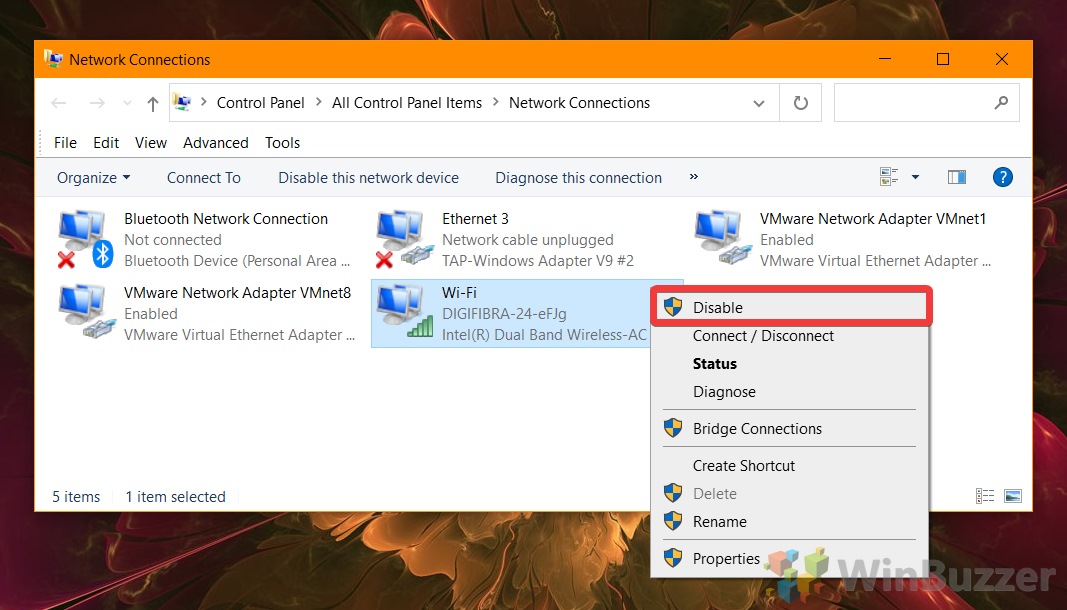
Press the Windows logo key and R key at the same time. In the Run box, type devmgmt.msc and click OK. Go to Network adapters and right-click on the network adapter. Click Properties. Click Advanced > Wireless Mode > Auto > OK. Note: Wireless Mode only available for network cards that support 5 GHz.
How To Enable G Network On Windows 10
One of the most perplexing issues is the dual-band problem, specifically concerning wireless networks that operate at 2.4GHz and 5GHz. Even though your router can emit at both frequencies and is set up to do so (or just the faster 5GHz one), you might not find the network on your computer.
How To Enable G Network On Windows 10
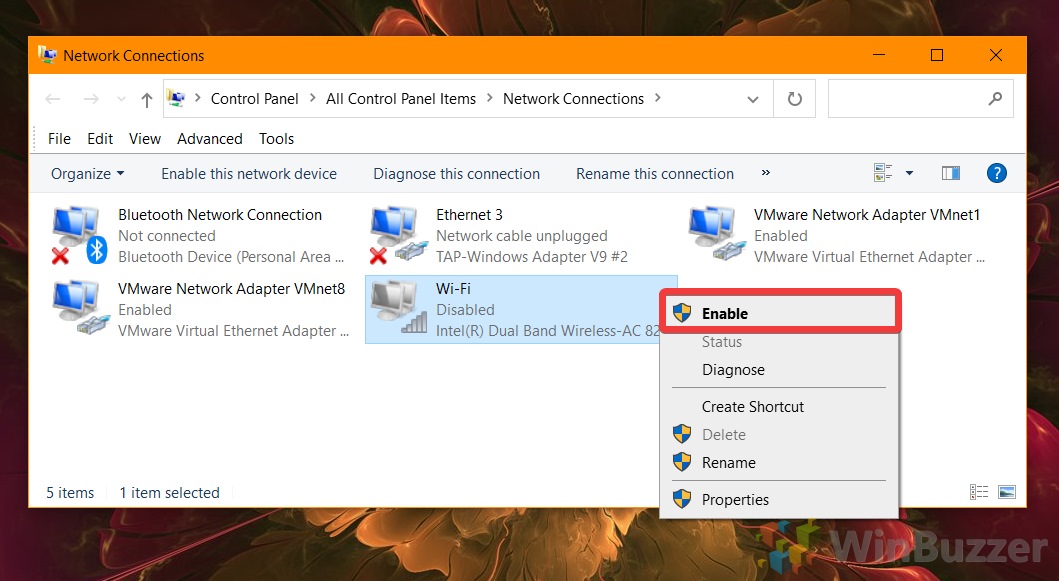
The 5G network not showing up issue can be caused by improper network adapter settings. To use 5GHz WiFi on Windows 10 , you need to enable the 5GHz wireless adapter mode.
How To Enable G Network On Windows 10
Such details provide a deeper understanding and appreciation for How To Enable G Network On Windows 10.
5GHz WiFi not showing up in your Windows 10 or windows 11 computer is a very common issue. There are literally thousands of queries out there asking why is 5G Wifi not showing up, how to enable 5G WiFi, why they can't connect to 5G WiFi, and more.